Turn podcast episodes into share-ready clips
Clips are how new listeners find shows — but a desktop editing session for every episode is exactly the chore that makes clip pipelines die after week three.
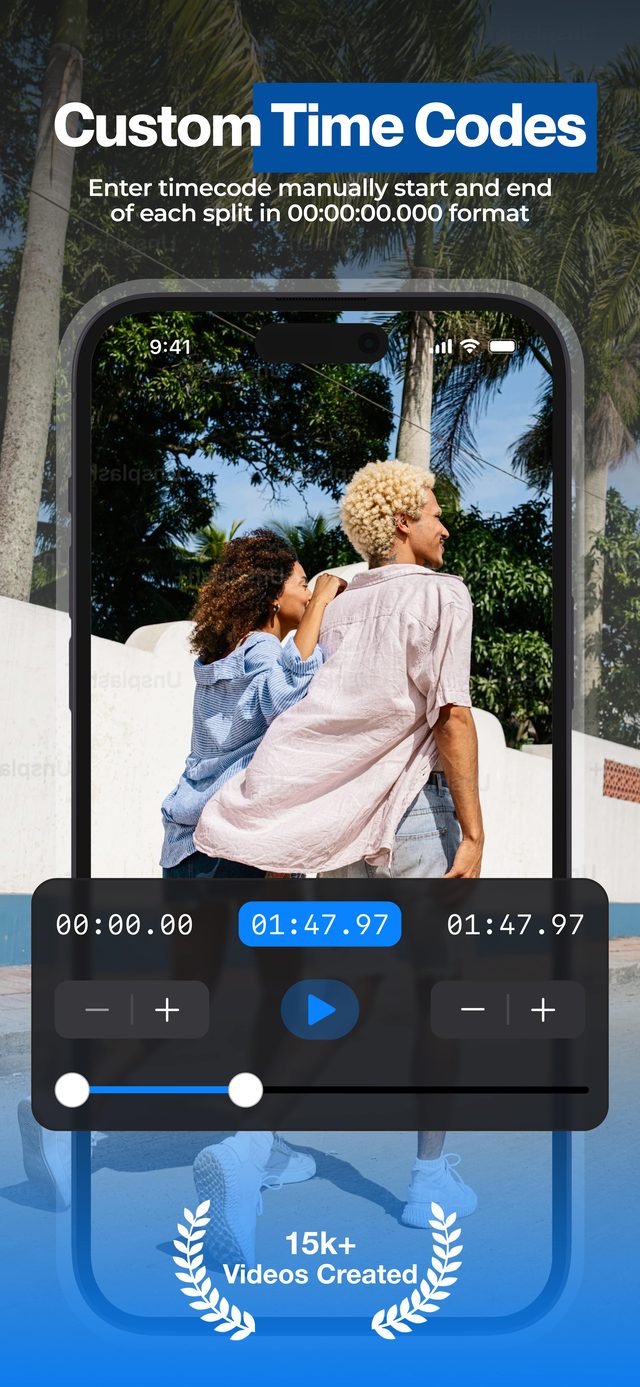
Note timestamps of the best moments while you record or listen back, then cut them out with frame-exact timecodes on your phone. An episode becomes five clips before you leave the studio.
Built for long recordings
Episode-length files are the normal case, not the edge case.
| Input length | No limit with Pro — a 7-hour file took 10–15 minutes |
|---|---|
| Timecode precision | 00:00:00.000 — down to the millisecond |
| Typical clip length | 30–90 seconds for Reels, Shorts, TikTok |
| Output | Full-quality clips, numbered, in Photos |
Works with the video recording of your episode — cameras, screen recordings of remote calls, or webinar exports.
How to clip an episode
Import the episode video
The full recording from your camera, Riverside export or screen capture.
Type the timecodes
Enter start and end of each highlight in 00:00:00.000 format — straight from your show notes.
Fine-tune the edges
Nudge cuts with the slider so clips open mid-hook and end before the energy drops.
Export for every platform
Save full-quality clips and post them as Reels, Shorts and TikToks through the week.
A clip pipeline that survives week three
Timecodes from your notes
Mark moments during recording, then punch the numbers in later. No scrubbing through two hours of audio.
Whole episode in one session
Split all highlights in one pass — the project autosaves if you get interrupted.
Show branding on every clip
Add your podcast's logo as a watermark (Pro) so clips advertise the show wherever they get reposted.
“Easily splits an hour video within seconds. 7 hour video took about 10–15 minutes, which is excellent.”
Frequently asked
How long can the source episode be?
With Pro there is no limit. A reviewer processed a 7-hour video in about 10–15 minutes, entirely on-device.
Does it work with audio-only podcasts?
The app splits video files, so use your episode's video version — a camera recording, a remote-call screen recording, or an audiogram render.
How many clips should I cut per episode?
Most shows post 3–10 clips per episode. With timecode entry, cutting ten highlights takes minutes, not an afternoon.
My episode is horizontal — what about vertical platforms?
Export the clips, then crop or reframe in the platform's composer. Many shows also post horizontal clips as-is on YouTube.
Will clip quality hold up?
Yes — clips keep the original resolution and frame rate, so platform compression is the main loss your footage sees.
More ways to split
Start splitting videos in seconds.
Free download. No account required. Works offline.
Download on theApp Store