Split a video into 30-second clips automatically
Thirty seconds is the magic number of short-form video: it is TikTok's completion-rate sweet spot, half a classic Short, and a third of a WhatsApp status.
Instead of trimming the same file over and over, set the interval once — the app slices the entire video into 30-second clips in one pass. Any other interval works the same way.
Which interval fits which platform
The cheat sheet for 2026 limits.
| 15 seconds | Snappy hooks, ad-style cuts, montage material |
|---|---|
| 30 seconds | TikTok completion sweet spot, Reels teasers |
| 60 seconds | Instagram Stories slides, classic Shorts |
| 90 seconds | WhatsApp Status limit, best-reach Reels |
Any custom interval works — type 45 seconds or 2:30 if that is what your workflow needs.
How to cut a video into 30-second clips
Pick the video
From your library or Files — a vlog, a match, a lecture, up to 4K.
Set the interval
Tap Duration, set 30 seconds (or any interval) and tap Done. The app maps every cut instantly.
Adjust any cut
Every boundary stays editable if a clip lands mid-sentence — drag or type an exact timecode.
Export all clips
Numbered, full quality, straight to Photos.
Built for interval cutting
One tap, whole file
A 10-minute video becomes twenty 30-second clips in a single pass — no repeated trimming.
Every cut stays editable
The automatic split is a starting point: nudge any boundary without redoing the rest.
The math is done for you
The app shows how many clips you will get and each clip's exact range before you export.
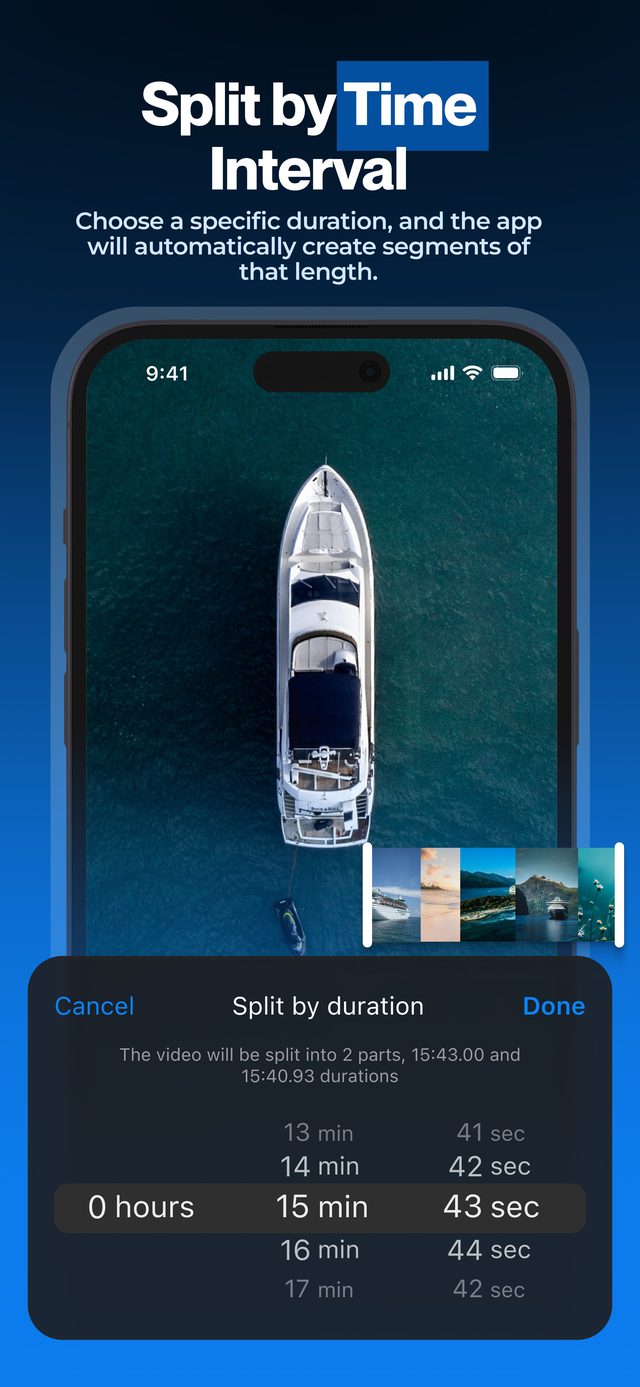
Set 30 seconds once and export a whole batch — the fastest route from one long file to a folder of postable clips.
Frequently asked
How many clips will I get from a 10-minute video?
Twenty 30-second clips. The app shows the exact count and each clip's time range before you export.
Will the last clip be shorter?
With split-by-time, the last clip holds whatever remains — a 65-second video gives 30s + 30s + 5s. If you need perfectly equal parts, use split-by-number instead.
Can I use a custom interval like 45 seconds?
Yes. Pick any interval in hours, minutes and seconds — 15 s, 45 s, 2 min 30 s, whatever the job needs.
Do the clips lose quality?
No. Each clip keeps the original resolution and frame rate. Turn on HDR Video (Pro) to keep iPhone HDR.
Can I export the clips without sound?
Yes — switch on Mute Audio (Pro) in the export settings, and all clips are saved without sound.
More ways to split
Start splitting videos in seconds.
Free download. No account required. Works offline.
Download on theApp Store