How to split a video in half on iPhone
The Photos app can trim a video, but it has no button to cut one video into two. You can work around it by trimming twice and saving each half as a new clip — but finding the exact middle with the trim handles is guesswork.
Split Video Into Parts finds the midpoint for you: choose 2 parts and you get two videos of exactly the same length, in the original quality, with the original video left untouched.
What you get
Two separate videos, cut at the exact middle.
| Where the cut goes | At the exact midpoint, to the millisecond |
|---|---|
| Result | Two new videos in Photos; the original stays as it is |
| Quality | Original resolution and frame rate, up to 4K |
| Need 3 or more parts? | Same steps — choose 3, 4 or more |
Want the cut somewhere other than the middle? Adjust the two parts before you export.
Split Video Into Parts or the Photos app?
For a single quick cut the Photos app is enough. For an exact middle — or more than two parts — an app is faster.
| Split Video Into Parts | Photos app | |
|---|---|---|
| How | Parts → 2 → Done → Export | Trim to the first half, Save Video as New Clip; repeat for the second half |
| Exact middle | Yes, calculated to the millisecond | By eye, with the trim handles |
| 3 or more parts | Choose 3, 4… — same two taps | Trim and save once for every part |
| Quality | Original resolution and frame rate | Original quality |
| Price | Free for short videos, long videos with Pro | Free, built into iPhone |
| Best for | Exact halves, long videos, many parts | One quick cut when the middle doesn't have to be exact |
Photos app checked on iOS 27 in October 2026.
How to split a video in half step by step
Open the video
In Split Video Into Parts (free on the App Store), tap Library or Files and pick your video.
Tap Parts
Keep the number at 2 and tap Done. The app cuts the video at the exact midpoint.
Check the halves
Play each part. Want the cut a little earlier or later? Change the end of part 1 and the start of part 2 — drag the ranges or type the timecode.
Export
Tap Export, then Save to library — both halves appear in Photos as separate videos.
Why split in half with an app
The exact middle
The app divides the length by two to the millisecond — no scrubbing to find where half of 7:43 is.
The original stays untouched
Both halves are new files. Your original video stays in Photos exactly as it was.
Same taps for 3 or 10 parts
Need thirds or quarters? Choose 3 or 4 instead of 2 — every part is the same length.
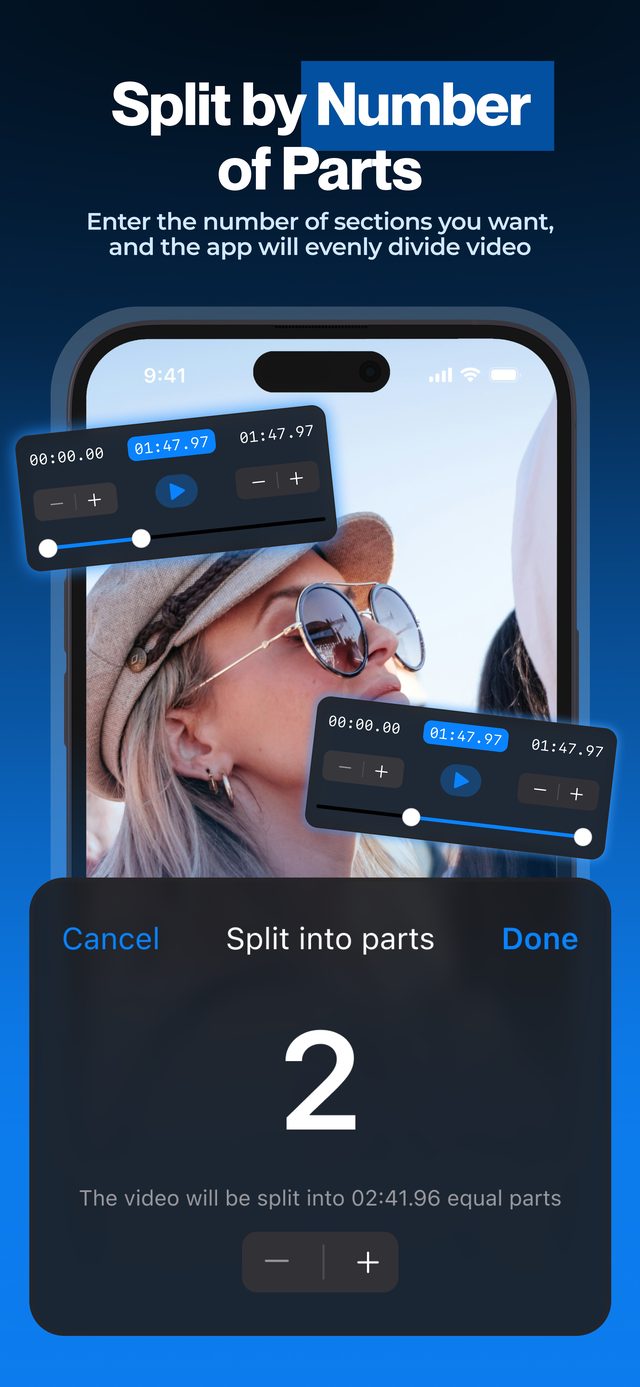
Two taps to the exact middle: no scrubbing, no guessing, and the original video stays as it was.
Frequently asked
Can I split a video in half on iPhone without an app?
Yes, with the Photos app: open the video, tap Edit, drag the trim handles to keep the first half, tap Done and choose Save Video as New Clip. Then do the same for the second half. You set the middle by eye.
How do I split a video into two parts that aren't equal?
Start with Parts → 2, then set the end of the first part and the start of the second to the same moment — drag the ranges or type the timecode, for example 01:20.00.
Will the halves lose quality?
No. Both keep the original resolution and frame rate. Turn on HDR Video (Pro) to keep iPhone HDR.
Is it free?
Splitting short videos is free. Long videos need Pro.
Can I split a video into 3 parts the same way?
Yes — choose 3 instead of 2. More in our guide to splitting a video into equal parts.
More ways to split
Start splitting videos in seconds.
Free download. No account required. Works offline.
Download on theApp Store